
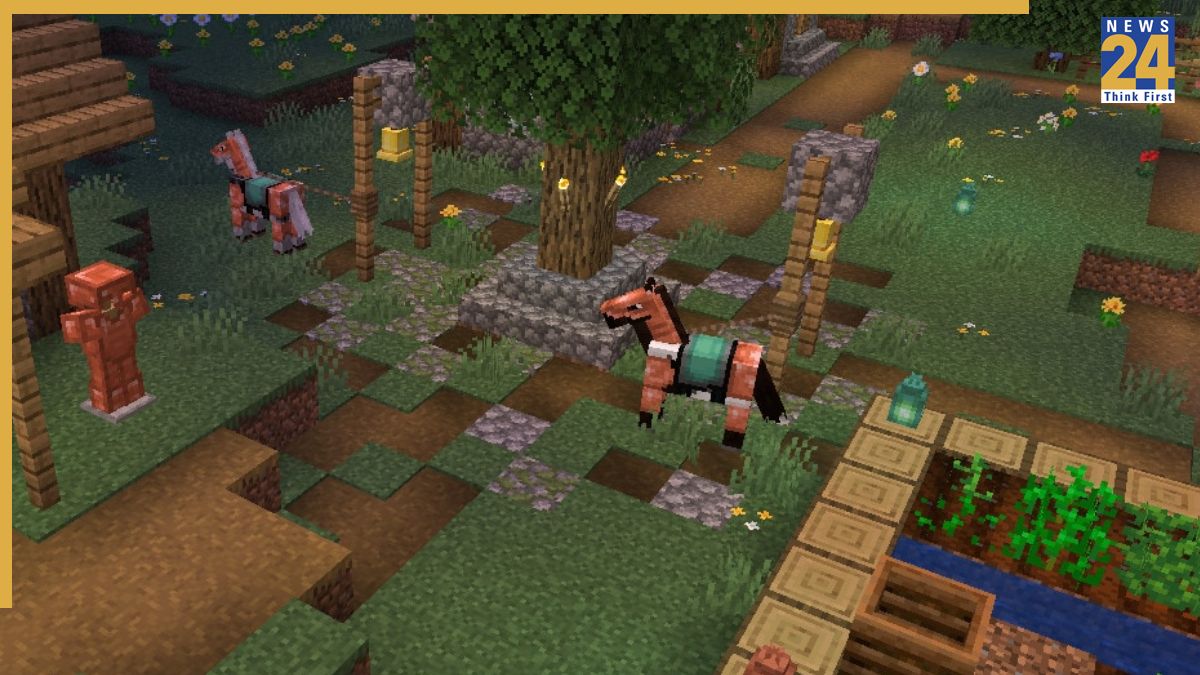

Mojang has recently released the Minecraft 1.21.9 The Copper Age Java Edition update, representing a significant update with new features to enhance gameplay. It’s the third major update of the year. Players should only download from official sources to avoid potential malware risks from unofficial platforms. This guide provides a straightforward approach to downloading and installing the new Minecraft 1.21.9 The Copper Age Java Edition update.
Before downloading the update, make sure your Minecraft Launcher is installed and running without any errors. Follow these steps to update your game:
Step 1: Open the Minecraft Launcher.
Step 2: Go to the Installations tab.
Step 3: Enable snapshots and experimental builds if needed, as early or pre-releases may be available there.
Step 4: In the Installations tab, search for ‘1.21.9 – The Copper Age’ or similar.
Step 5: Create or choose an installation using version 1.21.9 if the official release is available.
Step 6: After installation, select ‘Play’ to open Minecraft with the updated version.
Step 7: Back up your existing world before playing, as updates can occasionally affect world data.
You can access Minecraft 1.21.9 via two methods: the official release or through snapshots/pre-releases. Choose the approach that best suits your preferences.
Official Release Method:
– When Mojang releases 1.21.9 as a stable version, it will appear in the launcher’s list of available versions without needing snapshots.
– Choose ‘1.21.9 – The Copper Age’ from the version dropdown to launch.
– The required files will download automatically, updating the game to the new version.
Snapshot/Pre-Release Method:
– Mojang usually offers snapshots or pre-releases (testing versions) before the stable launch, allowing players to try out new features early.
– In the Installations tab, enable snapshots or pre-releases.
– Choose a snapshot of 1.21.9 or the most recent pre-release.
– As snapshots can potentially corrupt saves, make sure to back up your existing worlds.
– Now you can play using the snapshot version.
– If you choose to switch, it will safely replace your snapshot version.